Create a lead or update an existing one automatically using our simple Zoho CRM integration.
Our Zoho CRM integration offers a way to start a conversation with potential customers via an engaging lead generation form, then add their contact details instantly as a lead in Zoho.
Integrating a form with Zoho CRM takes no more than a few steps, and you can customize which fields you want to send the form data to.
Looking to connect automations with Zoho CRM instead? Take a look at our guide on how to create or update leads in Zoho CRM when someone submits your form or when a contact is created or updated in your Typeform contacts.
How to connect Typeform to Zoho CRM
1. Log into Typeform and open the form you want to connect to Zoho CRM. Click the Publish edits or Share button to make it live. Then click the Connect tab to view our list of integrations.
2. Now scroll through the list of integrations and click the Connect button next to Zoho CRM to begin setting up the connection.
3. Click the Add account button and enter your Zoho CRM login details.
4. In order for the integration to work, there are certain questions in your form that need to be set to Required: email, last name, and company name.
If you haven’t already done so, go back to your form and make sure you've included the email, last name, and company name questions, and set them as Required. Then publish your edits.
5. Next, select the question in your form that you want to grab the email address from.
6. And now choose which question in your form you want to take the contact’s last name from.
7. And finally, where the company name information should come from.
8. You can now customize the information that you want to take from your form answers and choose which fields to send it to in Zoho CRM.

Note: URL parameters are not supported by the Zoho integration. The integration also doesn't support custom fields created in Zoho. We recommend using a single line instead.
9. Click on the Finish button to finish up.
10. Now the integration is set up you’ll notice that the switch is set to On in the Connect panel, meaning that whenever your form is filled out, the information will be sent to Zoho. You can enable or disable the integration at any time using this button.
11. Do a test run to make sure the integration is working. Complete your form and make sure a lead is created in Zoho with all of the data you want to collect.
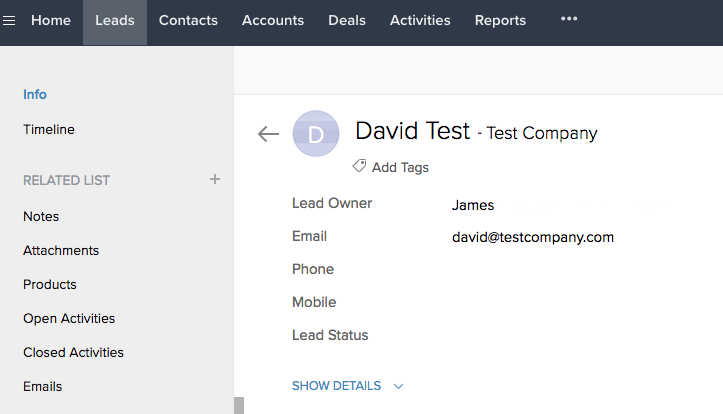
It’s as simple as that! We even have a lead generation template you can adapt and use to collect the information that you want to send to Zoho CRM.

Note! The Zoho CRM integration works with the Zoho domain that matches your Typeform data center. If your Typeform account is hosted in the EU data center, you can connect to Zoho EU accounts. If your Typeform account is hosted in the US data center, you can connect to Zoho.com accounts.
For more details on other cool ways you can connect Typeform to the apps you use to boost your productivity, check out Typeform Connect, where you’ll find all of our integrations.